SVG Editor

Edit an SVG file online. Open it, change its colours, move its points and parts, add text, and save it as an SVG again. It’s a free vector editor that runs in your browser, with nothing to install.

Draw a new one

or drop an SVG here · it opens in the editor, no account needed

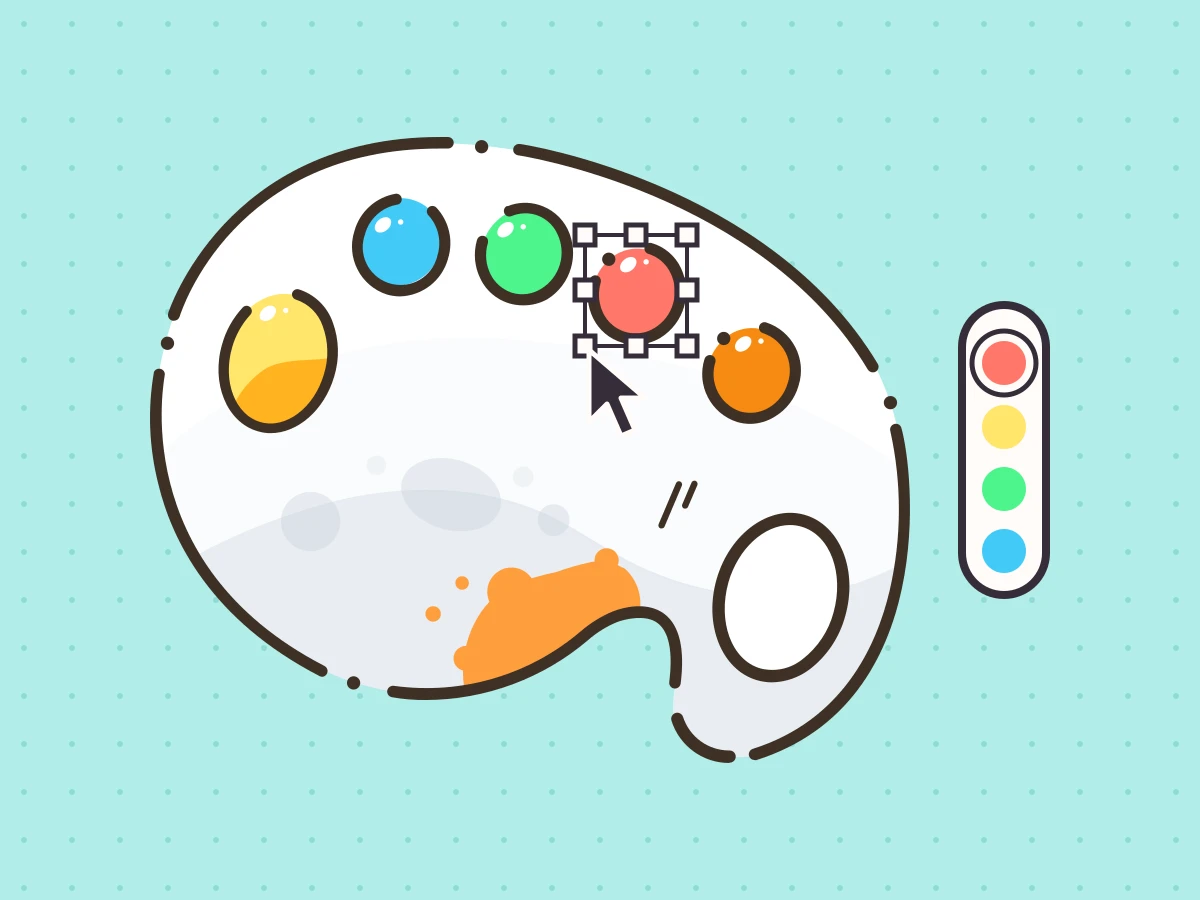
An illustration of a painter's palette open for editing: one blob of paint is selected, next to a strip of colour swatches

How to Edit an SVG File

  1. Upload your SVG. Drop in the file, or start a new drawing. The editor opens with the SVG placed on the page and selected as one object.
  2. Double-click to go inside it. That opens the SVG so you can pick its parts one at a time. Click any part to select it.
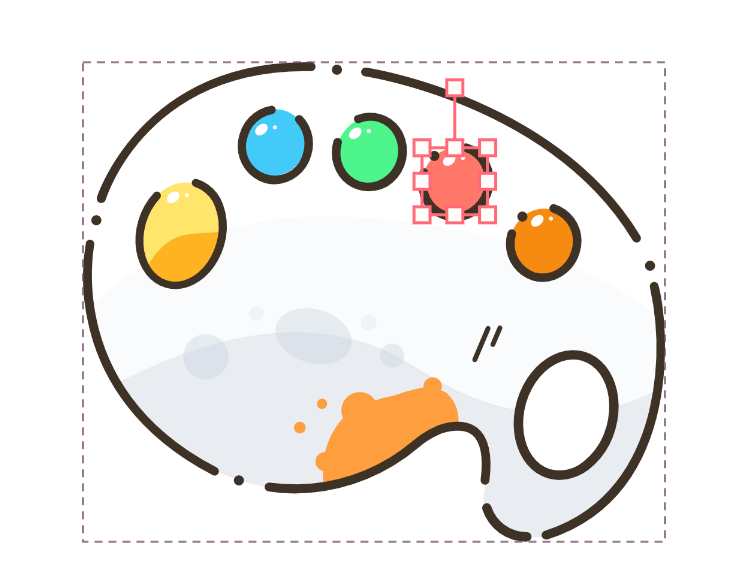
    An SVG illustration of a paint palette open in the editor, with one blob of paint selected on its own inside the dashed frame of the whole SVG
    Inside the SVG: the dashed line is the whole file, and the handles are on the one part that is selected.
    A bar at the top left of the canvas that reads Editing SVG, Layer 2, Layer 1, with an Exit button
    This bar shows while you are inside. Press Exit, or the Esc key, to come back out.
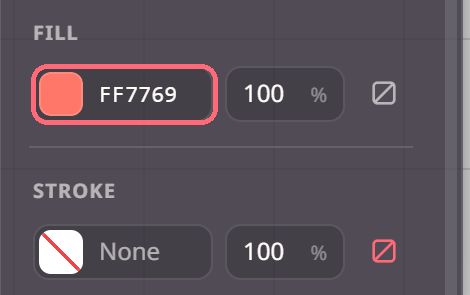
  3. Change a colour. With a part selected, the Design panel on the right shows its Fill and Stroke. Click the colour to change it.
    The Fill and Stroke rows of the Design panel, with the fill colour marked
    Fill is the inside of the shape; Stroke is its outline.
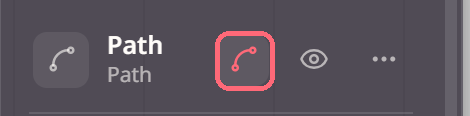
  4. Edit its points. Press the curve button beside the part’s name at the top of the same panel. The points of the path appear on the canvas: drag one to move it, or pull its handles to change the curve.
    The top of the Design panel showing the selected part, a Path, with the curve button beside its name marked
    The curve button turns point editing on and off.
  5. Export. Press Export in the top bar to save it as an SVG again, or as a PNG, JPG or PDF.

What You Can Change

The SVG opens as its own shapes. Each one stays a shape while you work, so nothing turns into pixels and the file is still a clean vector when you save it.

Colours
Pick a part and change its fill or its outline.
Position and size
Move, resize, rotate or flip a part, or the whole SVG.
Points
Edit a path point by point: drag a point, or pull its handles to change the curve.
Parts
A list shows every part of the file, so a small or hidden shape is easy to find and select.
Break apart
Turn the SVG into separate objects on the page when you want to rearrange it freely.
Additions
Add text, shapes, brush drawing or photos next to it, on their own layers.

A Free SVG Editor in Your Browser

An SVG is a vector file: a list of shapes, each with its own outline and colour. A vector editor works on those shapes directly. That is why you can make an SVG any size without it going soft, and why changing one colour does not mean repainting anything.

Most files open as they were made. Gradients, patterns, clipped and masked artwork, and shapes reused across the file are all read. Scripts and links to outside files are taken out.

The editor is also a drawing studio, so the same page that holds your SVG can hold brush drawing, photos and text. You do not need a second program to finish the design.

No SVG yet? The image to SVG converter traces a PNG or JPG into shapes you can then edit here.

Need pixels at a set size? The SVG to PNG converter draws an SVG at the exact pixel size you type, with a transparent background.

Making a monogram? The monogram maker gives you one as an SVG, ready to open and adjust.

Start From a Blank Page

You do not need a file to begin. Open Bunny Editor, draw your own shapes with the pen and shape tools, and export the result as an SVG.

Open the editor

Questions

Is the SVG editor free?

Yes. Opening, editing and exporting an SVG is free, and it works without an account. An account adds cloud storage so your designs are kept between visits.

Do I need to install anything?

No. The editor runs in your browser on Windows, Mac, Linux and Chromebook.

How do I edit an SVG file?

Upload it here. When the editor opens, double-click the SVG to go inside it, then click the part you want to change. You can recolour it, move or resize it, or edit its points.

Can I change the colours in an SVG?

Yes. Double-click the SVG, select a part, and change its fill or outline colour.

Can I edit the text in an SVG?

It depends on the file. Many SVGs store lettering as shapes rather than as text, and those are edited as shapes: you can recolour and reshape the letters, not retype them. You can always add new text of your own in the editor.

Can I save it as an SVG again?

Yes. Export gives you SVG, PNG, JPG or PDF.

What happens to scripts inside an SVG?

They are removed when the file is opened, along with links to files stored elsewhere. An SVG can carry code, and the editor does not run it.

Where is my file kept?

Without an account, the design stays in your browser on your device. If you are signed in, it is saved to your account as a design.

How large can the SVG be?

Up to 20 MB.

Can I make an SVG from a PNG or JPG?

Yes, with the image to SVG converter. It traces the picture into shapes, and you can open the result in the editor from there.

Have an SVG ready? Upload it and edit it.

SVG Editor — Edit SVG Files Online, Free | Bunny Editor