Mandala Maker

Draw a mandala online. Make one stroke and it repeats around the circle, mirrored in every segment, so a few simple lines become a full pattern. It’s free, runs in your browser, and needs no account.

Start a mandala

Symmetry is already on, with 12 mirrored segments. Change it any time from Assists, the compass button in the editor’s top bar.
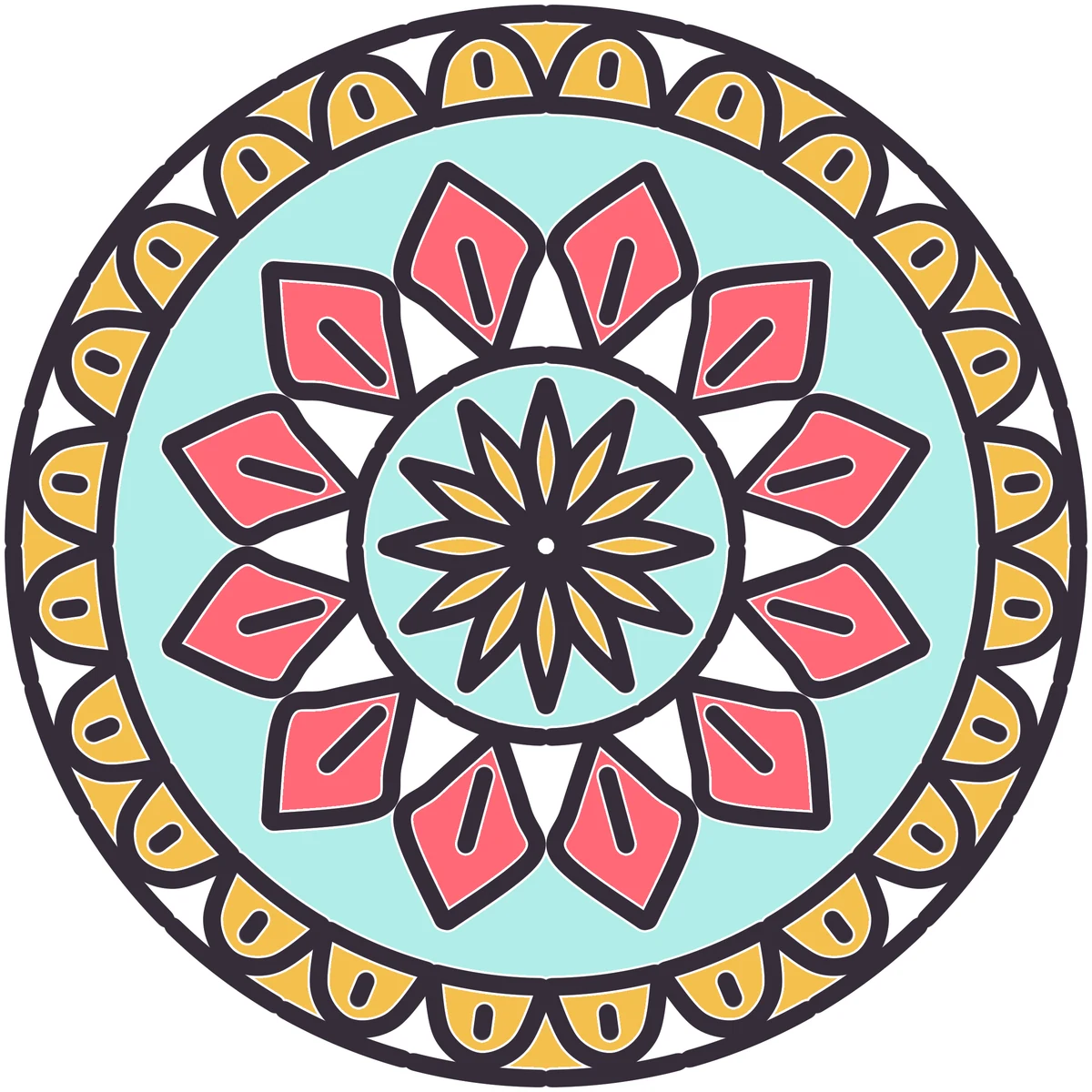
A mandala drawn in Bunny Editor with 12 mirrored segments: dark ink lines with a mustard flower at the centre, coral petals on a mint ring, and a mustard scalloped border

Eight Strokes and Six Clicks

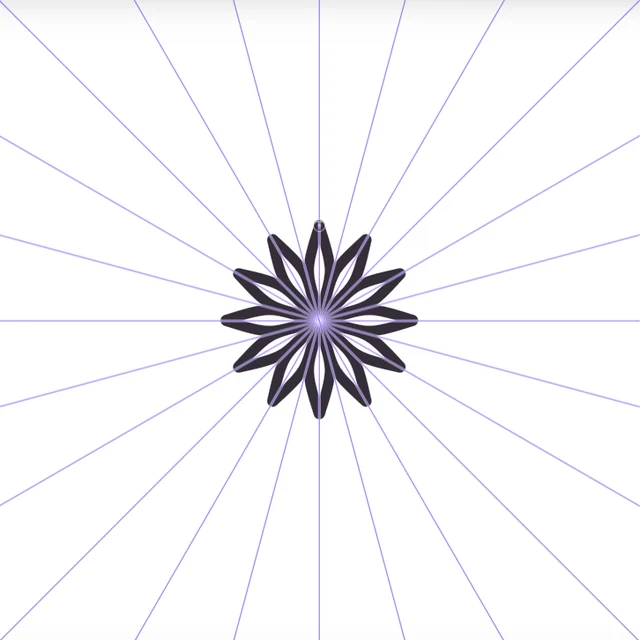
  1. A twelve-petal flower at the centre of the page, with the symmetry guide lines showing

    1. One curve. A single petal, drawn once. It appears in all 12 mirrored segments, so one stroke is already a flower.
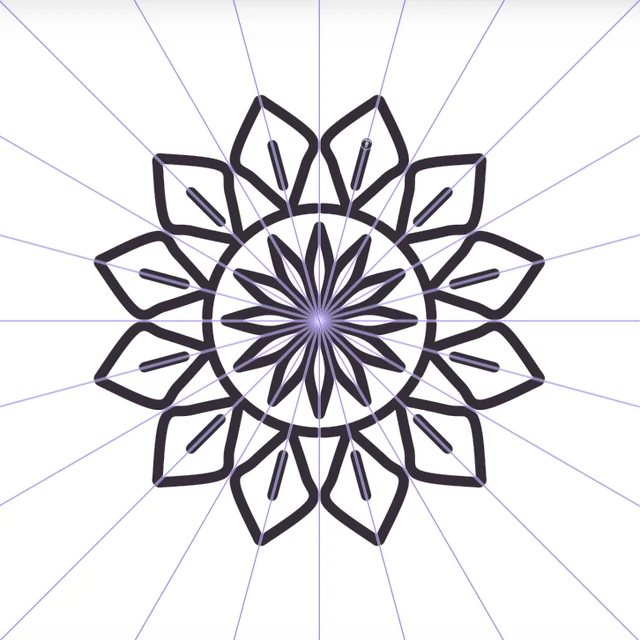
  2. The flower with a circle around it and a ring of larger petals

    2. A ring and larger petals. Three more strokes: a short arc that closes into a circle, one curve for a petal, and a line inside it.
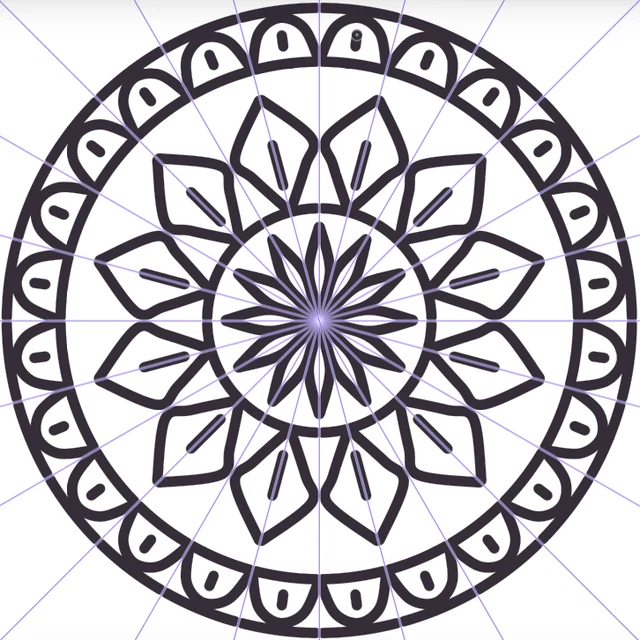
  3. The finished line drawing, with a scalloped border and an outer circle

    3. A border. Two arcs and a scallop between them, plus a dot. Eight strokes in all for the whole drawing.
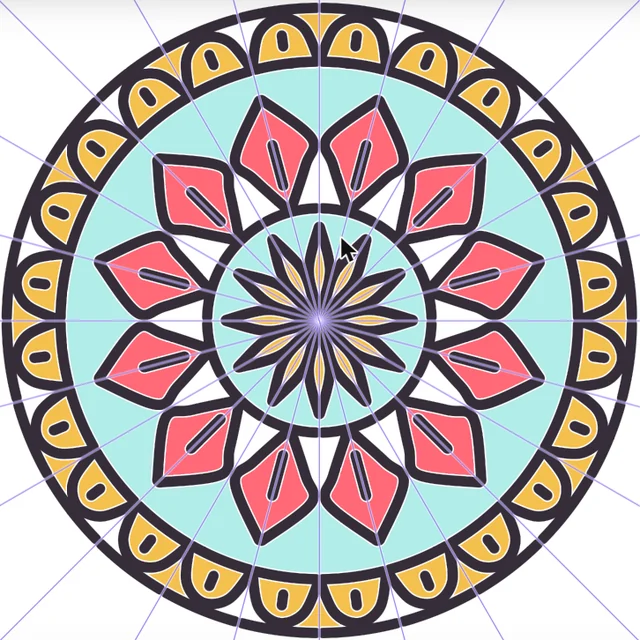
  4. The same mandala coloured in coral, mint and mustard

    4. Colour. The fill bucket follows the symmetry too. Six clicks coloured every area in the picture.

How to Make a Mandala

  1. Start a mandala. The editor opens on a square page with the brush picked and the Symmetry assist already on: Radial, 12 segments, mirrored. Faint guide lines show the slices. You can draw straight away.
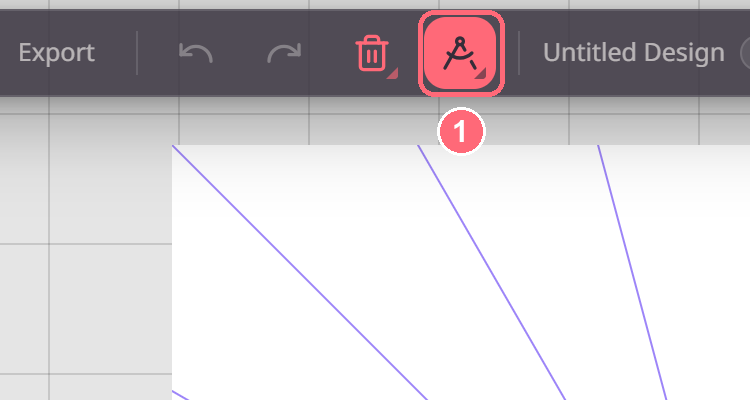
    The top of the editor: the top bar with the Assists button marked, and the symmetry guide lines fanning out across the page
    1 Assists, the compass button in the top bar, holds the symmetry settings.
    The right end of the bottom bar with the chip that reads Symmetry, Radial 12 mirrored
    2 The chip in the bottom bar shows symmetry is on. Click it to open the same menu.
  2. Draw in one slice. Make a stroke anywhere and it appears in every slice at the same moment. You only ever draw one part; the rest follows.
  3. Build it in rings. Begin with a small shape at the centre, then add a ring around it, then another. Each ring can be simple: a petal, an arc, a row of dots.
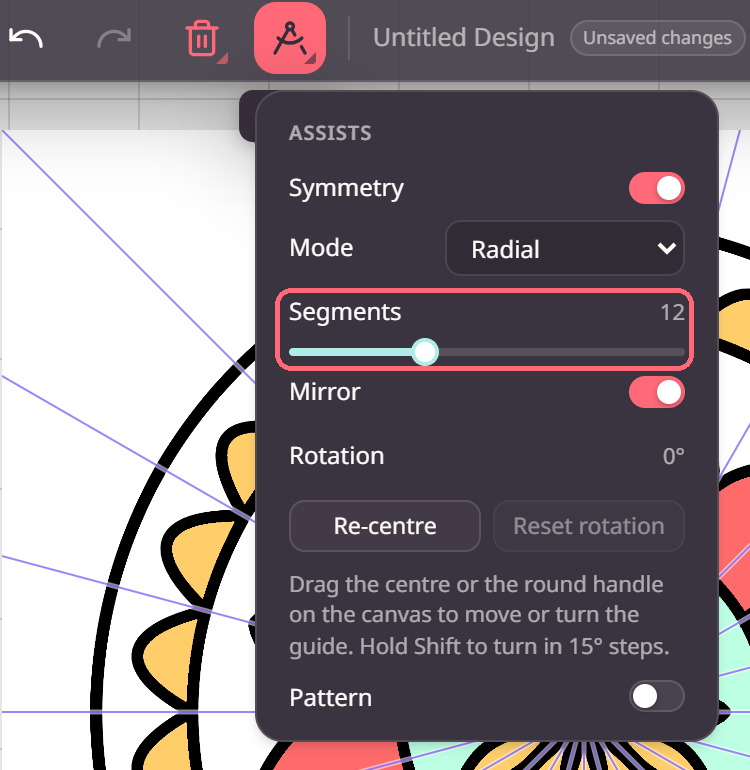
  4. Change the slices. Open Assists to set the number of segments, from 2 to 32, or to switch Mirror off. What you have drawn stays as it is; the next stroke uses the new setting.
    The Assists menu open under its button, with the Segments slider marked at 12, between the Mode choice set to Radial and the Mirror switch
    The Assists menu, open over a mandala. Segments is the slider to try first.
  5. Colour it. Pick the fill bucket from the brush panel and click an area. It fills the same area in every slice.
  6. Export. Press Export in the top bar and choose PNG, JPG, SVG or PDF. The guide lines are not part of the export.

What Each Symmetry Setting Does

Symmetry is one of the editor’s assists: helpers that guide what you draw. These are the controls in the Assists menu shown above, in the order they appear. Change one at any point; the next stroke uses the new setting.

Symmetry
The switch at the top. Turn it off to add something that should appear only once, like a name, then turn it back on.
Mode
Radial is the one for mandalas. The others mirror left to right (Vertical), top to bottom (Horizontal) or in four quarters (Quadrant).
Segments
From 2 to 32. Six or eight gives bold, open shapes; sixteen and up gives fine, lace-like detail.
Mirror
On, each segment is a mirror image of its neighbour, the classic kaleidoscope look. Off, the same stroke simply repeats round the circle, which gives a spinning, pinwheel feel.
Rotation
Turns the whole guide, so a point and not a flat edge faces up. Drag the round handle on the canvas, and hold Shift to turn in 15° steps.
Re-centre
Puts the centre back in the middle of the page after you have dragged it somewhere else. Drag the centre point on the canvas to move the pattern off to one side.
Pattern
A second assist in the same menu: it repeats what you draw as tiles across the page, for seamless patterns.

While symmetry is on, the bottom bar shows a chip such as “Symmetry · Radial 12 mirrored”. Click it to open the menu again, or press its × to switch symmetry off. Shift+S does the same from the keyboard.

Getting a Good Result

Work from the centre outward. A mandala reads as rings. Finish one ring before starting the next and the pattern stays balanced.

Vary the weight. A thick outline for each ring with thin detail inside it gives depth. Change the brush size between rings.

Leave space. Empty bands between rings make the busy ones stand out, and they are what make a coloring page pleasant to fill in.

Put colour on its own layer. Add a layer under the line work and paint there, so the lines stay crisp on top.

What to Do With It

Print it as wall art. The wall art resizer turns one export into the five standard print ratios.

Make it a sticker. Export a PNG and add a cut border with the sticker outline maker.

Cut it or scale it. Turn a black line mandala into shapes with the image to SVG converter.

Repeat it as a pattern. The same menu has a tile repeat; see the seamless pattern maker.

More Than Mandalas

The same symmetry works left to right, top to bottom, or in four quarters, for faces, butterflies, borders and tiles. It is one of the assists in Bunny Editor, a drawing studio in your browser.

Start a mandala

Questions

Is the mandala maker free?

Yes. Drawing and exporting are free, and it works without an account. An account adds cloud storage so your designs are kept between visits.

Do I need to be able to draw?

No. Because every mark is repeated round the circle, even a plain curve or a row of dots turns into a pattern. Start with simple shapes and build outward.

How do I change the number of segments?

Click the compass button in the top bar to open the Assists menu, then drag the Segments slider, from 2 to 32. Strokes you have already drawn stay as they are; the new number applies to what you draw next.

How do I turn symmetry on in a design I already have?

Open the Assists menu from the compass button in the top bar and switch Symmetry on, or press Shift+S. Set Mode to Radial for a mandala. It works in any design, not only ones started from this page.

Can I use a drawing tablet or an iPad?

Yes. The editor works with a mouse, a pen tablet, a stylus or a finger.

Can I make a mandala coloring page?

Yes. Draw the line work in black on the white page and leave it uncoloured, then export it as a PDF or a PNG to print.

Can I sell the mandalas I make?

Yes. What you draw is yours to use and sell.

What can I save it as?

PNG, JPG, SVG or PDF. For a PNG with a transparent background, hide the Background layer in the layers list before you export.

Can I undo a stroke?

Yes. Undo removes the stroke from every slice in one step.

Is this a generator that makes the mandala for me?

No. It does not produce a random pattern at the press of a button. You draw, and the symmetry does the repeating, so the result is your own design.

Ready to draw? Start a mandala.

Mandala Maker — Draw a Mandala Online, Free | Bunny Editor