Sticker Outline Maker

Add a white outline to any PNG. Upload a design, set how thick the outline should be, and download it as a sticker-ready transparent PNG with a matching cut line. It’s free and runs in your browser, so your image stays on your device.

or drop a file here · PNG with a transparent background works best · stays on your device
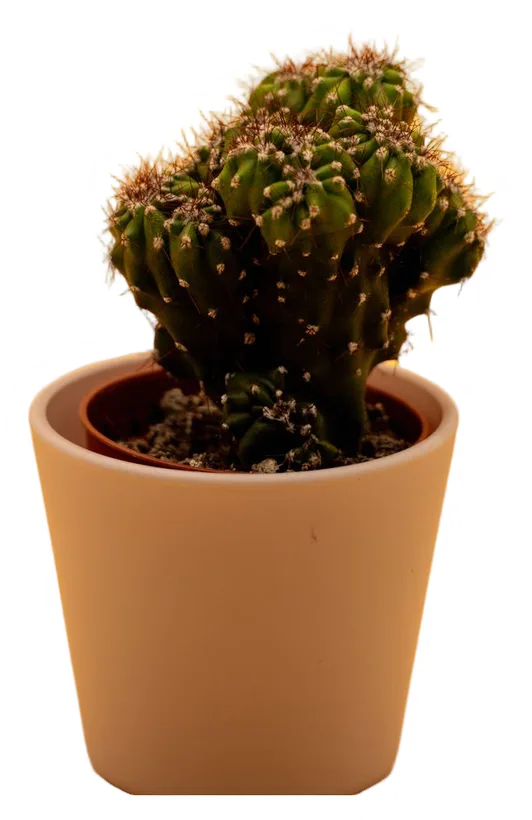
A potted cactus cut out of its background, with no border
Your PNG
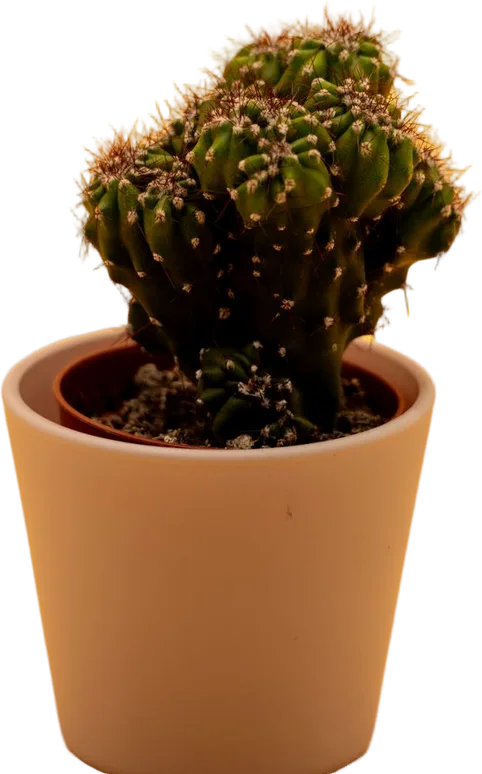
The same cactus with an even white sticker border around it
With the outline

Made with this page, from a photo by Patrick on Pexels.

How to Add an Outline to a PNG

  1. Upload your design. Drop in a PNG with a transparent background. The outline follows the edge of whatever is visible.
  2. Set the outline. Drag the thickness slider and pick a colour. The preview updates as you go.
  3. Download the sticker. Get a transparent PNG with the border added, plus the cut line as an SVG if your cutting software wants one.

An Even Border, Every Time

The white edge is what makes a design read as a sticker, and it gives the blade room so a cut that drifts a little never touches the art.

Making that edge by hand usually means stacking blurred or shifted copies of the design behind itself, which leaves it lumpy and thinner at the corners. Here the outline is measured: every point on its edge is the same distance from the art.

The sticker comes out as one solid piece. Gaps inside a design, like the middle of a letter or the space between two parts, are filled with the outline colour, so it cuts and peels in one go. You can turn that off.

Sticker Outlines for Cricut and Silhouette

For print-then-cut stickers, the machine prints your design and then cuts around it. Cricut Design Space calls this border an offset. The PNG from this page already has it built in, so the cut follows the outer edge of the border and the art keeps its white margin.

If your software wants the cut path as its own file, download the cut line as an SVG. It is the outer edge of the outline as a single path, at the same size as the PNG, so the two line up when you place them together.

Cutting software differs in how it imports files, so check how yours handles print-then-cut images before a big print run.

Before and After the Outline

The outline is the middle step of making a sticker.

Before: remove the background. The outline needs a transparent background to follow. Take one off with the background remover.

After: fill a sheet. Pack many copies of the finished sticker onto one print sheet with the gang sheet builder.

Finish It in the Editor

“Edit in editor” opens your sticker in Bunny Editor, a drawing studio in your browser, where you can add text, draw on it, or arrange a whole sticker sheet.

Open the editor

Questions

What does the outline maker do?

It adds a border of even thickness around the visible part of your image, following its shape. That border is what gives a die-cut sticker its white edge.

What kind of image should I upload?

A PNG with a transparent background. The outline is drawn around whatever is not transparent, so an image with a solid background gets a border around the whole rectangle. If yours has a background, take it off with the background remover first.

How thick should the outline be?

Enough to leave a clear margin when the sticker is cut. The Medium setting is a good starting point; go thicker for small stickers or designs with fine detail at the edge. Thickness is shown in pixels of your image.

What does "Fill them in" do?

Designs often have empty spaces inside them: the middle of a letter O, or a gap between two parts. With the option on, any space the outline fully surrounds is filled with the outline colour, so the sticker is one solid piece. Turn it off to keep those spaces see-through.

What is the cut line SVG for?

It is the outer edge of the outline as a vector path, the same size as the PNG. Use it when your cutting software wants the cut path as a separate file. Many machines can also work out the cut from the PNG’s transparent edge on their own.

Does the outline change my artwork?

No. Your art is drawn at its original size and quality on top of the outline. The image only grows by the thickness of the outline on each side, and empty transparent edges are trimmed off.

Does my image leave my device?

No. The outline is made inside your browser tab and saved straight to your device. The image is only sent anywhere if you choose "Edit in editor" while signed in, which saves it to your own library.

Is it free?

Yes. No sign-up, no watermark and no limit on how many stickers you make.

Have a design ready? Upload it and add the outline.

Sticker Outline Maker — Add a White Outline to a PNG | Bunny Editor